How to Diagnose Dorm & Campus WiFi Problems
Dorm WiFi is a fundamentally different animal from home WiFi. It's hundreds of devices on a handful of access points, managed by infrastructure you'll never log into, and "just restart the router" isn't an option available to you. When it's slow or dropping, the fastest path to actually fixing it (or at least getting a real answer from Res-Net) is knowing which of three things is actually broken: your device, your room's signal, or the network itself.
Step 1: Rule Out Your Own Device First
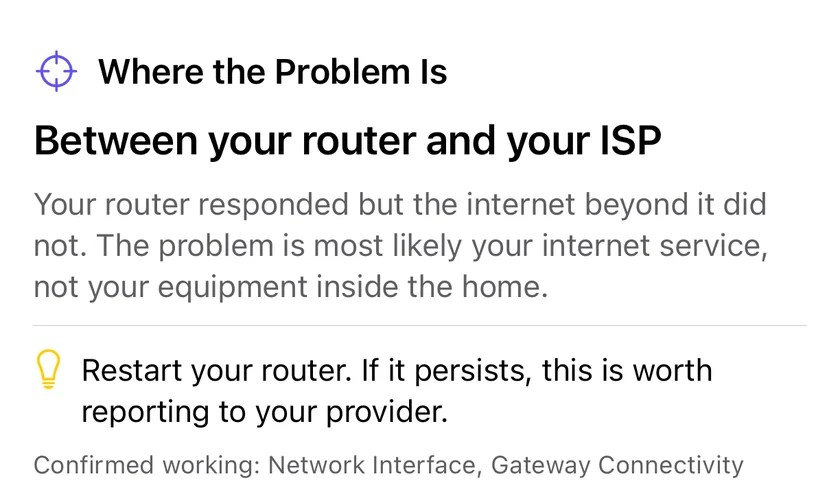
Before blaming the network, confirm the problem isn't local. Run Smart Diagnostics, which checks six things in sequence: your network interface, a ping to the gateway, general internet reachability, DNS resolution, an HTTPS connection, and a download speed test. A slow DNS step with a fast gateway ping points somewhere completely different than a slow gateway ping across the board, and knowing which is which saves you from restarting your laptop three times for nothing.
Step 2: Check Your Room's Actual Signal
Dorm rooms are brutal on WiFi signal: cinderblock walls, metal bed frames, and forty other networks all broadcasting on the same limited 2.4GHz spectrum. Connection Monitor gives you a live latency, jitter and packet loss reading you can check by standing in different spots in your room. If it's erratic by your desk and steady by the door, that's useful information, maybe your desk is the problem, not the building's WiFi.
What you won't get: the actual WiFi channel or frequency band your access point is broadcasting on. iOS blocks all third-party apps from reading that, not just PingKit, so there's no "switch channels" fix available to you as a student even if congestion is the cause. That setting lives entirely with campus IT.
Step 3: Test at Different Times of Day
If your connection is fine at 10am and crawling at 9pm, that's not a broken network, it's a saturated one. Run Speed Test at a few different points across a day or two and compare. A consistent evening dip that lines up with everyone being back in their rooms streaming and gaming is peak-hour congestion, a capacity problem campus IT can plan around but can't instantly fix, and knowing it's that specific pattern (rather than "sometimes bad") changes what you should expect them to do about it.
Step 4: See What's Sharing Your Connection
LAN Scanner sweeps your local network segment for connected devices. What you'll actually see depends on your campus's network configuration: many universities deliberately enable client (AP) isolation, which stops students on the same WiFi from seeing or reaching each other's devices, for privacy and security reasons. If that's on, expect to mostly see your own devices and the gateway. Don't read "LAN Scanner found nothing" as a tool failure, in an isolated network, that's correct behavior.
What to Actually Put in a Help Desk Ticket
"WiFi is slow" is the least useful ticket a campus IT team receives, because it's not actionable, they have no idea if you mean 10% slower or unusable. Include instead:
- The exact time(s) you noticed the problem
- Your gateway ping time from Ping Test
- Download/upload numbers from Speed Test
- Whether it's every day at the same time, or a one-off
- Your building and, if you know it, your floor
That's a ticket a network admin can actually act on: a pattern report, not a vibe.
Signs It's Genuinely the Network, Not You
- It's everyone, not just you. If your floor's group chat is also complaining at the same time, that's a strong signal it's shared infrastructure, not your laptop.
- The gateway itself is slow to respond, not just the wider internet. A high ping to your own network's gateway (not a distant server) points at local congestion or an access-point problem, not your ISP or a website being down.
- It's the same time window, repeatedly. A one-off bad reading is noise. The same dip every evening for a week is a pattern worth reporting.
Frequently Asked Questions
Why is dorm WiFi always slow at night?
Peak-hour congestion, everyone's back from class using the same shared access point at once. It's a load problem, not usually a broken network.
Can I see other students' devices on dorm WiFi?
Usually not. Most campus networks enable client isolation deliberately, so a LAN scan typically shows only your own devices, which is the network working as intended.
What should I include in a dorm WiFi help desk ticket?
A timestamp, gateway ping time, DNS resolution time, and a speed test reading. Mention if it happens at the same time daily.
Do I need router admin access to fix this?
No, and you almost certainly can't get it anyway. Everything here works entirely from your own device.
Diagnose Your Dorm WiFi
Six-step diagnostics, signal checks, and speed tests, free, no login, no router access needed.
Download PingKit Free