LAN scanning and all 19 tools are free. No ads, no account required.
What PingKit's LAN Scanner Does
PingKit scans your entire local network in seconds and builds a complete inventory of connected devices. Everything runs locally on your iPhone with no data sent to external servers.
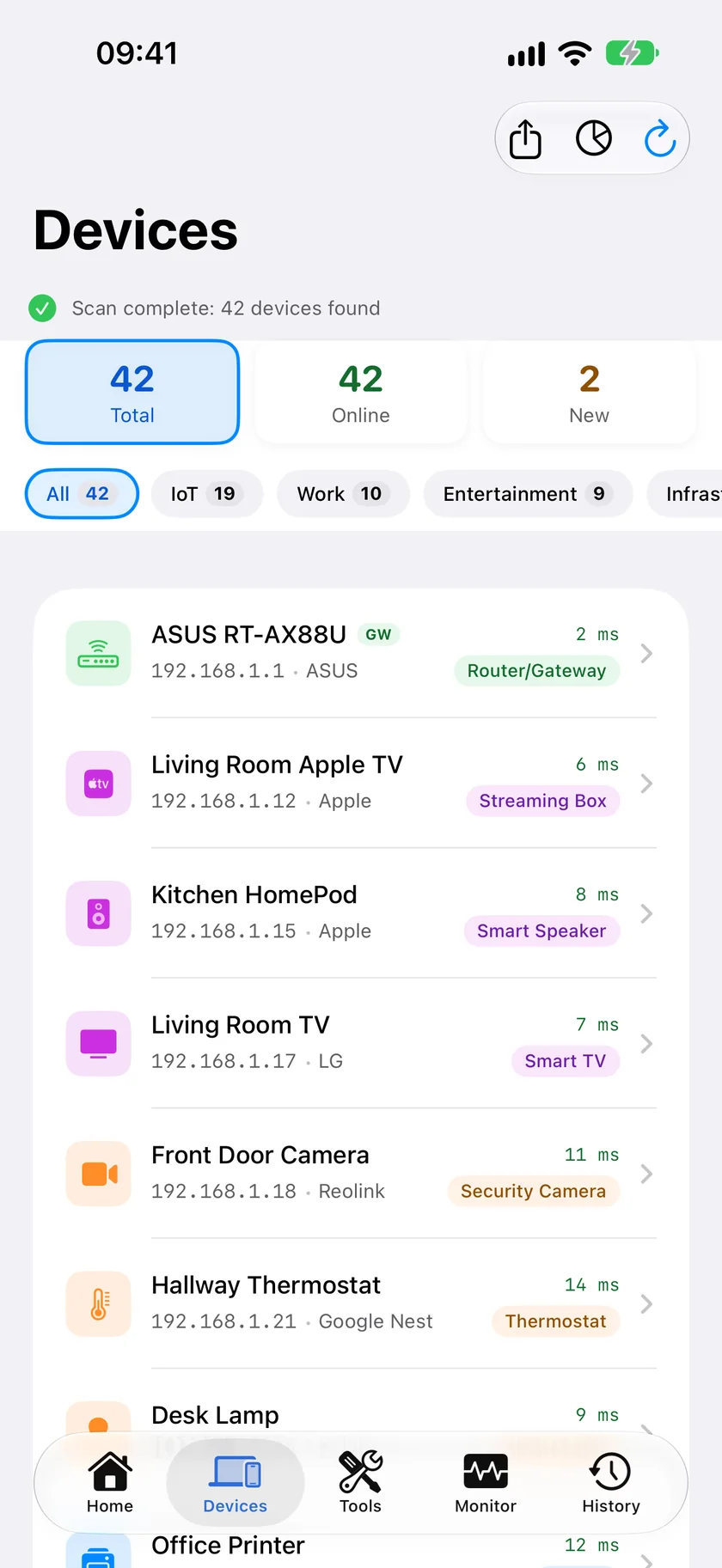
Forty-two devices, each named and filed. The addresses are the easy half; working out what is behind each one is the half that takes work.
Ask Siri. Say "Find devices with PingKit" and the scan starts on the network you are on. The phrase is registered when PingKit is installed, so there is nothing to set up, and the answer comes back without the app opening.
Device Discovery
Finds every device on your network and displays its IP address, hostname, and best-guess identity from Bonjour/mDNS, SSDP, and vendor/service signature matching. (iOS usually withholds other devices' MAC addresses; the Mac Agent adds the MAC and its OUI vendor where a device exposes one.)
Port Scanning
Scan any discovered device for open ports to identify running services like web servers, printers, file shares, and media servers.
Bonjour / mDNS
Discover services advertised via Bonjour and mDNS, including AirPlay devices, printers, HomeKit accessories, and shared folders.
Vendor Identification
Works out each device's maker from the signals it exposes: Bonjour/mDNS and SSDP hints, hostname patterns and service signatures. Where the operating system still hands an app another device's MAC address, the first half of that address names the manufacturer too, but that is no longer something to rely on. iOS answers every peer with a placeholder, and macOS 27 returns hardware addresses only to Apple's own binaries, so the product does not depend on it.
What You Can Do With a LAN Scan
A LAN (local area network) scan turns an invisible network into a clear, readable list. Most people have no idea how many devices are actually connected to their router until they run their first scan and the count comes back higher than expected. Here are the jobs PingKit's scanner handles every day.
Find every connected device
The core use is a complete inventory. PingKit walks your subnet and lists every device that responds, each with its IP address, hostname where one exists, and a best-guess maker and category. On the Mac Agent under macOS 15 and 26 that includes the MAC address and its OUI vendor (macOS 27 hides MAC addresses from apps, so there your router's device list is the place to read one); on iPhone, iOS usually withholds other devices' MAC addresses, so identity is built from Bonjour/mDNS, SSDP, and hostname/service signatures instead. Phones, laptops, the router itself, printers, TVs, speakers, consoles, cameras, plugs and bulbs all show up in one place. It is the fastest way to answer a deceptively simple question: what is actually on my network right now?
Spot unknown or intruder devices
Once you know what your own devices look like, anything you do not recognise stands out. If a neighbour guessed your WiFi password or an old device you forgot about is still connected, a scan surfaces it. Tap into a suspicious entry to see its vendor and open ports, then change your WiFi password if it does not belong. Our deeper walkthroughs cover this in how to detect unknown devices on your WiFi and is someone stealing my WiFi?
Find a device's IP for port-forwarding
Setting up a game server, a security camera, a NAS, or remote access usually means assigning a port-forward rule in your router, and that rule needs the device's local IP address. Rather than digging through the router's DHCP table, run a scan, find the device by name or vendor, and copy its IP. From there you can use the port scanner to confirm the service is actually listening before you open anything to the outside world.
Audit IoT and smart-home gadgets
Smart bulbs, plugs, doorbells, vacuums and hubs are convenient but rarely transparent about what they are doing. A scan lets you confirm every gadget is online, check which vendor each one really is, and use port scanning to see whether a device is exposing a management interface it should not. Cheap IoT hardware is a common weak point, and knowing what you own is the first step to securing it. Pair this with our network security scan for a guided check.
Count devices that are slowing your WiFi
When WiFi feels sluggish, the cause is often simply too many active devices sharing the airtime, or one device hammering the connection. A scan gives you an honest device count and helps you find forgotten gadgets that can be unplugged or moved to a guest network, freeing up bandwidth for the things you actually use.
PingKit vs Other LAN Scanner Apps
There are plenty of network scanners on the App Store. Most do the basic discovery job competently. Here is an honest look at where PingKit differs, including where another tool might suit you better.
Feature
PingKit
Typical free scanner
AI-assisted device naming
Yes, with Guardian. Cloud AI labels devices signature matching can't.
Rare. Usually shows raw IP and vendor only.
Ads
None, ever.
Common; often interstitial or banner ads.
Account required
No sign-up. Nothing leaves your device.
Varies; some require login or email.
Security score & guidance
Built-in security scan with plain-English advice.
Usually discovery only, no assessment.
Background monitoring
Free Mac Agent watches the network while the Mac is awake and alerts on new devices.
On-demand scans only.
To be clear, all 19 PingKit tools, including the LAN Scanner, are free with no ads and no account. The Guardian subscription ($2.99/month or $24.99/year on iPhone) adds cloud device naming for the devices the on-device classifier cannot identify. It also puts the free Mac Agent's device list and alert history in PingKit on your iPhone; the monitoring and its new-device alerts, which reach your iPhone as notifications too, need no subscription; here is how that compares with Fing Premium. If you only ever need an occasional manual scan, the free tier covers it completely.
How Device Discovery Works
It helps to understand what a scanner is actually doing, because it explains both why it is fast and why some devices are harder to identify than others. PingKit combines several standard techniques and layers its own classification on top.
ARP and ping sweep
The scanner works through the range of addresses on your subnet (for example 192.168.1.1 through 192.168.1.254) and probes each one. On the local network this largely relies on ARP, the Address Resolution Protocol, which maps IP addresses to the physical MAC address of the hardware. On iOS, Apple redacts other devices' MAC addresses for privacy, so while the sweep still detects each device, the raw MAC and its OUI vendor are read by the PingKit Mac Agent on macOS 15 and 26 rather than the iPhone app (macOS 27 withholds them from apps as well). A device that responds is online; one that stays silent is either absent or configured not to reply. This sweep is what produces the raw list of live IP addresses in a few seconds.
MAC vendor lookup (OUI)
Every network device has a MAC address, and the first half of it, the Organisationally Unique Identifier or OUI, is registered to the company that made the network chip. Where a real MAC is available (on the PingKit Mac Agent under macOS 15 and 26, and on any device that exposes one), PingKit matches that prefix against a public OUI database to show you Apple, Samsung, Espressif, TP-Link, Amazon and so on. On iPhone, iOS usually withholds other devices' MAC addresses, so PingKit leans on the Bonjour, SSDP, and machine-learning signals below to name a device instead.
mDNS and Bonjour names
Many devices politely announce themselves on the network using mDNS (multicast DNS), which Apple calls Bonjour. This is how AirPlay speakers, printers, HomeKit accessories and Macs advertise friendly names and services. PingKit listens for these announcements to attach real names like "Office Printer" or "Living Room HomePod" to the matching IP address. Our dedicated Bonjour browser exposes this layer in full if you want to explore advertised services directly.
AI classification for the devices signature matching misses
mDNS, SSDP and service signatures get you a long way, but plenty of devices still arrive nameless. For those, PingKit can send the combination of signals a device gives off (vendor, open ports, advertised services, hostname patterns) to its own AI service, which suggests a category such as Smart TV, game console, IP camera or robot vacuum. It only steps in when signature matching alone cannot confidently label a device, and it asks your permission before it ever sends anything. That last step is part of Guardian; the signature matching that names most devices is free and runs on your iPhone.
Why some devices show as 'unknown'
An "unknown" entry means a device gave the scanner almost nothing to work with: no hostname, no Bonjour services, and a MAC prefix that is either not in the public OUI list or has been deliberately randomised for privacy. That is not a bug, it is the device being quiet. The troubleshooting section below explains how to coax more detail out of these devices.
Troubleshooting
A device I expect isn't showing up
First, confirm the device is actually powered on and connected to WiFi rather than mobile data or Ethernet on a different segment. Some devices, especially battery-powered IoT gadgets, drop into a deep sleep and stop responding to ARP probes until they wake; try using the device, then re-scan. Finally, make sure your iPhone and the missing device are on the same WiFi network and band, not a guest network.
The last resort for a device the network will not name. The photograph is read on the iPhone itself and has no remote step at all.
A scan only finds the devices that answer while it runs. Your router remembers every device it gave an address to, asleep or not, and its admin page lists them all: PingKit's free Router mode links to it.
A device shows as 'unknown'
This is normal for quiet devices. Tap the entry and run a port scan on it; the open ports often reveal what it is (port 631 suggests a printer, 554 an IP camera, 8009 a Chromecast). If you are on Guardian, PingKit's cloud AI will usually suggest a sensible category once signature matching alone can't. You can also cross-reference the IP against your router's DHCP client list, which sometimes carries a hostname the device only shared during connection.
MAC randomization is hiding the vendor
Modern phones and laptops rotate to a random, private MAC address per network to protect your privacy. That is good for you but it means the OUI vendor lookup returns nothing useful, because the random prefix is not registered to any manufacturer. The device is still real and still yours; it simply will not be identified by MAC alone. Bonjour names and Guardian's behavioural classification are the reliable ways to label these devices.
A device the scanner still cannot name
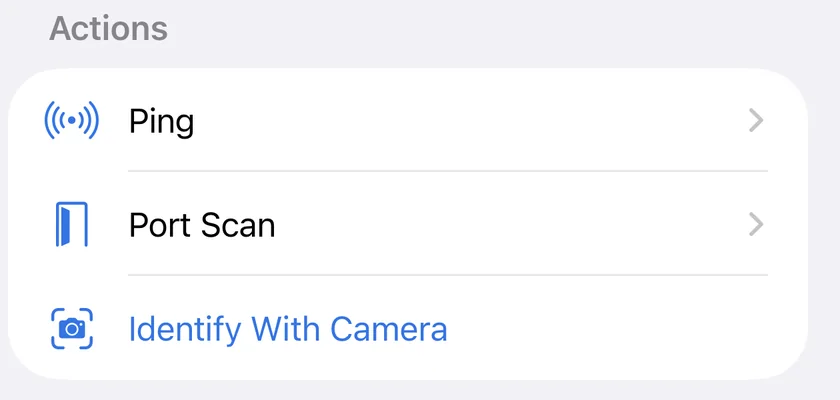
When nothing on the network names a device, the device itself usually does. Open it from the Devices tab, scroll to Actions and tap Identify With Camera, then point the iPhone at the printed label on its underside or back. PingKit reads the make, the model and any printed identifier off that label, which for a quiet smart plug or a no-name camera is often the only place that make and model appear at all.
The photograph never leaves your iPhone. This feature has no remote step and deliberately no way to add one, not even Private Cloud Compute. It is also told to ignore any password, WiFi key, PIN or network name printed on the label, and what it returns has no field to hold one. It is free, and it is in the iPhone app only: the Mac Agent has no camera step.
This one is narrow, and worth being plain about. It needs iOS 27, an iPhone that runs Apple Intelligence, the on-device model's vision capability, which not every Apple Intelligence iPhone has, and one of the 16 languages that model covers out of the 27 PingKit ships in. The hardware floor is iPhone 15 Pro. Where any of that is missing the button is hidden rather than offered and broken, so most people will not see it.
Devices on a different subnet or VLAN
A scanner can only reach devices on the same subnet as your iPhone. If your router runs a separate guest network, a dedicated IoT VLAN, or you have a mesh system that segments traffic, devices on those segments are intentionally walled off and will not appear. Many routers also enable "client isolation" or "AP isolation" on guest networks, which blocks devices from seeing each other entirely. To scan them, connect your iPhone to that specific network, or temporarily disable isolation in your router settings.
AI-Assisted Device Recognition
Local signature matching labels most devices automatically from open ports, Bonjour and SSDP services and hostname patterns, with no manual tagging and no subscription. For the ones that combination leaves ambiguous, PingKit can ask its own AI service for a category instead of leaving you with "Unknown - 192.168.1.47", and it asks your permission first.
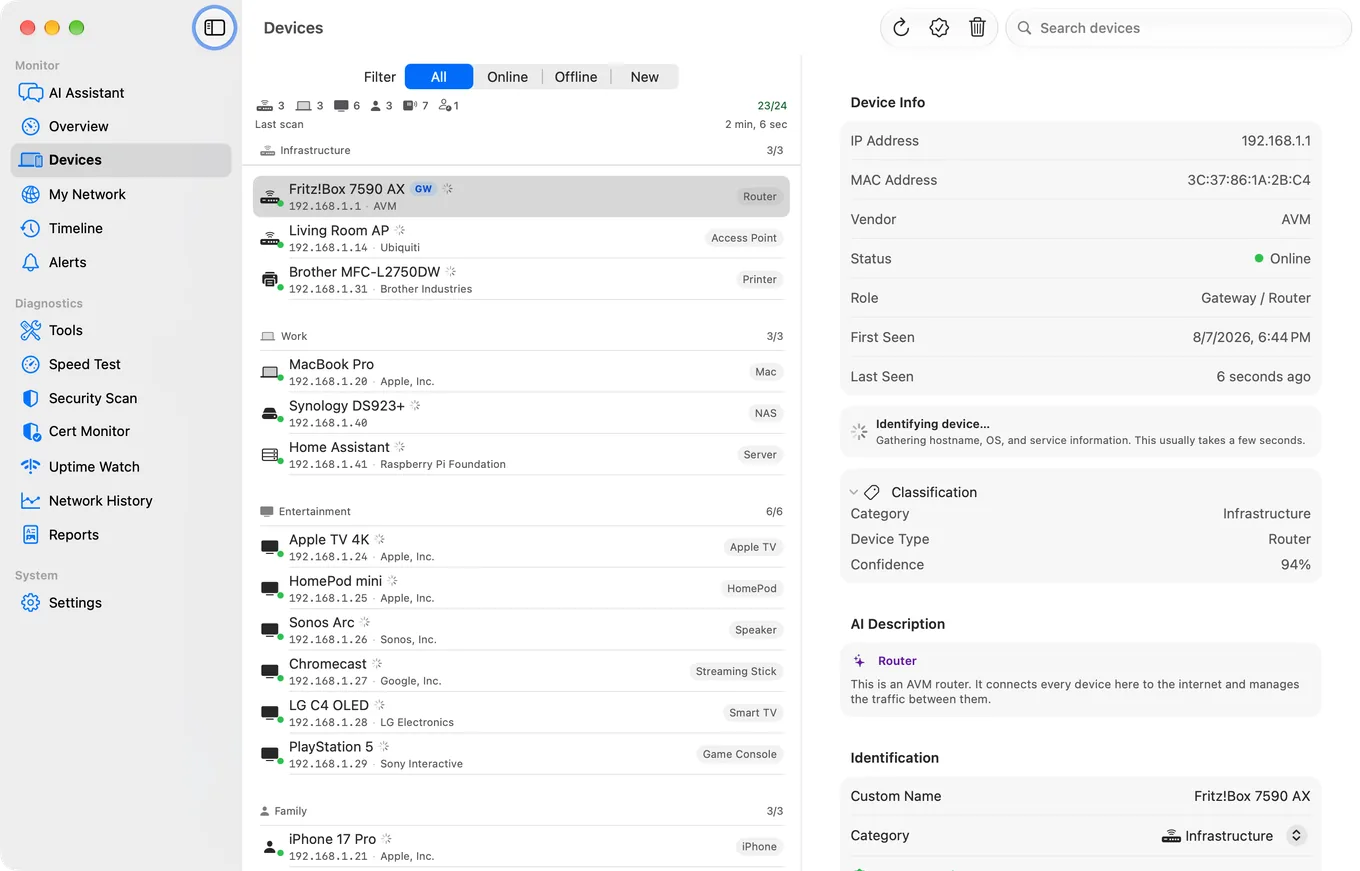
The iPhone app scans whenever you open it, which is perfect for a quick check. But intruders and new devices do not wait for you to run a scan. There is also a free Mac Agent: install it on a Mac that stays awake on your network (turn off automatic sleep) and it keeps scanning, building a running history of who is connected. The moment a new or unrecognised device joins, it sends you an alert, so you find out about the device that appeared at 3 a.m. without having to remember to look. It is the difference between checking your network and actually monitoring it.
The free Mac Agent doing the watching: the same list, kept current without anyone opening the app.
Frequently Asked Questions
How do I scan my local network on iPhone?
Open PingKit and go to the Devices tab. It scans your local network automatically (or tap Scan Network) and lists every connected device with its IP address, hostname, and hardware vendor. The scan takes a few seconds and works on any WiFi network.
Can I see all devices connected to my WiFi?
Yes. The Devices tab scans your entire subnet and shows every device that responds, each with its IP address, hostname, and a best-guess maker and category. On iPhone, iOS usually withholds other devices' MAC addresses, so identity comes from Bonjour/mDNS, SSDP, and signature matching; on macOS 15 and 26 the PingKit Mac Agent adds the MAC address and its OUI vendor where a device exposes one (macOS 27 hides it, so read it from your router's device list there). Guardian subscribers also get AI device naming for the devices that combination leaves ambiguous, suggesting labels like Smart TV, game console, or robot vacuum.
Is PingKit's LAN scanner free?
Yes. The LAN Scanner and all 19 network tools are completely free with no ads and no account, and so are the AI explanations of a result. The optional Guardian subscription ($2.99/month or $24.99/year on iPhone) adds cloud device recognition for the devices the on-device classifier cannot name, raises the weekly AI allowance, and brings the free Mac Agent's dashboard to your iPhone.
Why does a device show up as 'unknown'?
A device shows as unknown when it broadcasts no hostname, advertises no Bonjour or SSDP services, and answers on no port that gives it away. iOS hides other devices' MAC addresses, so the iPhone cannot fall back on the manufacturer prefix. PingKit's local classifier can often still label it from its open ports, for free; where that is not enough, Guardian asks PingKit's own service, with your permission, for the devices the local match leaves under 50% confident.
Does a LAN scanner work without an internet connection?
Yes. LAN scanning only needs your local WiFi network, not the internet. PingKit talks directly to the devices on your subnet, so it works on offline or isolated networks. What needs a connection is the optional extra: AI explanations and, with Guardian, the cloud lookup for devices the on-device match cannot name.
Why can't I see a device on another network?
A scanner only sees devices on the same subnet as your iPhone. Devices on a guest network, a separate VLAN, or behind another router live on a different segment and will not appear. Connect your iPhone to the same network and re-run the scan.
Will PingKit alert me when a new device joins?
The iPhone app scans on demand. For hands-off monitoring, the free Mac Agent keeps scanning from any Mac on your network while that Mac is awake, and sends an alert the moment a new or unrecognised device appears, even while your iPhone is asleep.
Is it legal to scan my own network?
Scanning a network you own or administer is normal and legal. You should not scan networks you do not own or have permission to test, such as a public hotspot or an employer's network without authorisation.
What's the difference between a LAN scan and a port scan?
A LAN scan answers "what devices are on my network?" A port scan answers "what is this one device running?" You normally run a LAN scan first, then port-scan a specific device to see its open services.
Go further with Guardian Plus
Cert Monitor for 50 domains (5 on Guardian, 1 free), a signed ISO 27001 PDF export, and scheduled, branded reports. $9.99/mo on iPhone and iPad, $4.99/mo on Mac.
Yes. Open any device from the Devices tab and tap Port Scan, and the scanner opens with that device's address already filled in. Targets are restricted in code to your own local network, so a public address is refused, as is a hostname that resolves to one. Ports that answer are listed with the well-known service name for that number, which is often what identifies a device the scan could not otherwise name.
How do I find unknown devices on my WiFi network?
Scan from the Devices tab and read the list against what you know you own: each entry shows its address, plus whatever hostname or Bonjour name it publishes and, where a device advertises one, a maker and a category. iOS withholds other devices' MAC addresses, so on iPhone that identity comes from Bonjour/mDNS, SSDP and hostname and port signatures rather than an OUI lookup, and a device that publishes none of those stays an unnamed address with no maker shown. Tap anything you do not recognise and port-scan it, since the open ports usually give a quiet device away. Guardian adds a cloud AI fallback that runs only for the devices signature matching leaves under 50% confident, and suggests a category for those.
See what is on your network.
Download PingKit free and scan your local network in seconds.