Check which ports are open on the devices on your own network, see the service behind each one, and read the result in plain language, from your iPhone.
Port scanner and all 19 tools are free. No ads, no account required.
What PingKit's Port Scanner Does
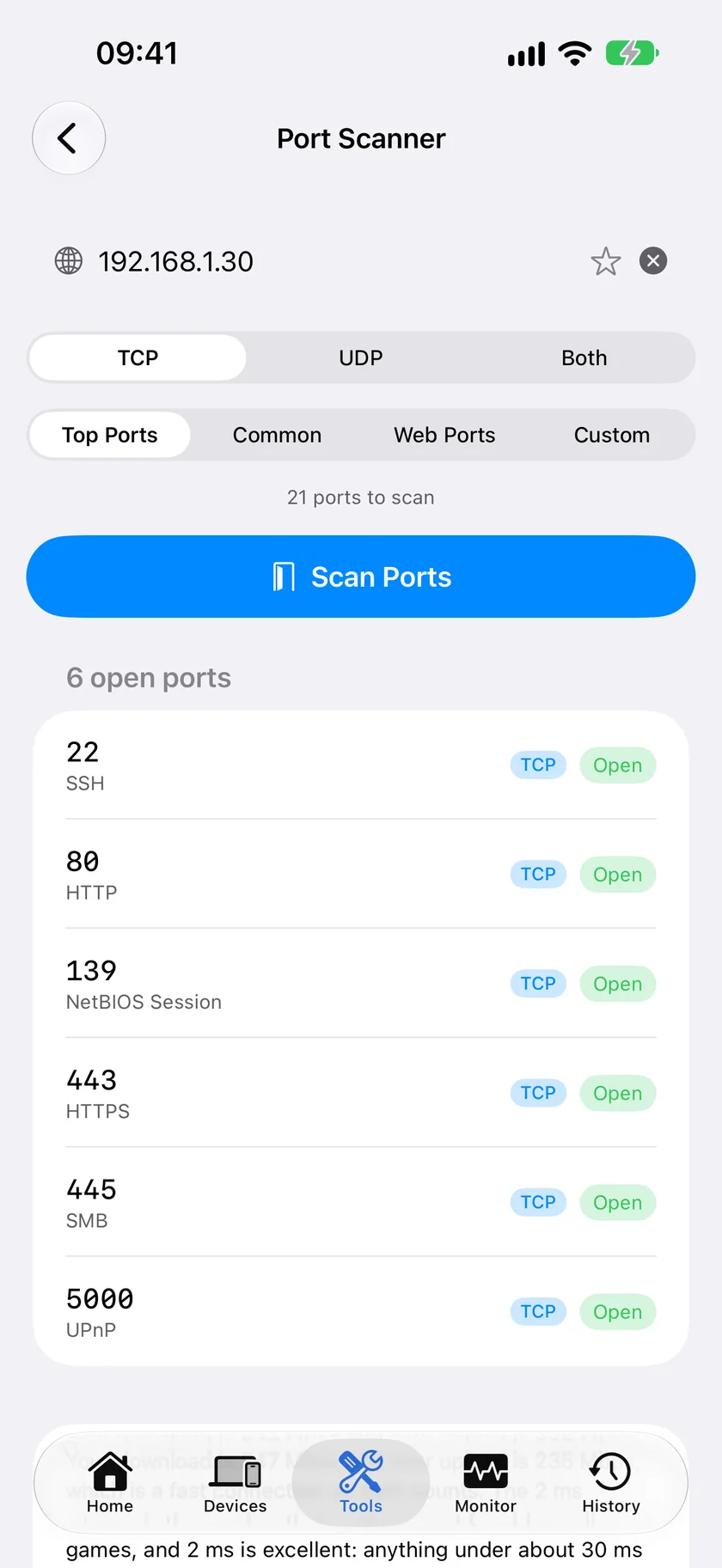
PingKit's port scanner tries a connection to each port in a range on a device on your own network and lists the ports that answered, each labelled with the service normally found on that number when it is a well-known one. A UDP port that sends nothing back is listed too, because UDP cannot tell an open port from a filtered one. Addresses outside your own network are refused, and so is a hostname that resolves to a public address: PingKit only scans devices on your own network. It is the same fundamental technique (a TCP connect scan) that desktop tools like nmap use, packaged in an interface you can use from your phone.
The result lists what answered, with the well-known service name for each port. Nothing that did not answer is listed.
Ask Siri. Say "Scan ports with PingKit". The shortcut inherits the same rule as the tool: it will only scan an address on your own local network. The phrase is registered when PingKit is installed, so there is nothing to set up, and the answer comes back without the app opening.
Port Detection
Scan a preset or any range from 1 to 65535. For TCP the result lists the ports that accepted a connection; a port missing from it was closed or filtered. A UDP port that sends nothing back is listed too, because UDP cannot tell an open port from a filtered one.
Service Identification
Open ports are labeled with their commonly associated service - HTTP, HTTPS, SSH, FTP, MySQL, RDP and about ninety other well-known ports. Quickly understand what is running without memorizing port numbers.
Custom Port Ranges
Scan a single port, a specific range, or use built-in presets - the top 21 ports, the common 1-1024 range, or web ports. Flexible enough for any use case.
Check Your Own Devices
See what each device on your network answers on. Check that a service you switched off has really stopped listening. For what your router exposes to the internet, the Security Scan checks your own public address on 22, 23, 80, 443, 3389, 5900 and 8080, and lists any other ports a public database has seen open on it.
Who Uses a Port Scanner
Home Lab and Server Administration
You set up a server on your network and need to confirm ports 80 and 443 answer while everything else stays quiet. Or you just moved SSH from 22 to a custom port and want to verify it. PingKit runs these checks from your phone while it is on the same network, without needing to SSH into another machine first.
Checking Your Own Network
Self-hosters use port scanning to see what each of their own devices offers on the local network, so they can close the ones they did not mean to open. If a database is answering on 3306 or an old service is still listening on a port you thought was closed, a scan shows it. Whether anything is reachable from the internet is a separate question, and the Security Scan checks your own public address on 22, 23, 80, 443, 3389, 5900 and 8080, and lists any other ports a public database has seen open on it.
Troubleshooting Connectivity
An application cannot connect to a server? Before diving into application logs, check whether the port is even reachable. If PingKit shows the port as filtered, the problem is a firewall or network configuration - not the application. If the port is closed, the service is not running. If it is open but the app still fails, the issue is at the application layer. Port scanning eliminates the most common causes in seconds.
Verifying Firewall Rules
Firewall rules are easy to get wrong. From your phone on the same network you see what a device's own firewall lets through: a port that should be blocked shows up if it answers. What your router lets in from the internet can only be tested from outside your network. PingKit's Port Scanner does not scan public addresses; the Security Scan checks your own public address on 22, 23, 80, 443, 3389, 5900 and 8080, and lists any other ports a public database has seen open on it.
When to Use a Port Scanner
A port scanner answers one deceptively simple question: is something listening on this port, and can I reach it from here? That question comes up constantly once you start running services at home or managing a server. Here are the situations where reaching for a port scanner saves you the most time.
Check if a port is open for a game server, NAS, or Plex
Self-hosting a Minecraft world, a Synology NAS, or a Plex media server means a specific port needs to be reachable. Plex defaults to TCP 32400, many game servers use a custom high port, and a NAS web interface often sits on 5000 or 5001. Point PingKit at the device's IP and scan that exact port. An open result confirms the service is up and accepting connections; a closed or filtered result tells you the service or the network in front of it is the thing to fix. If you want to find the device's IP in the first place, the LAN scanner lists every host on your network so you do not have to dig through the router admin page.
Verify port forwarding actually works
Port forwarding is notoriously fiddly. You add a rule in the router, but there is no easy confirmation it took effect, and the full test has to come from outside your home network. PingKit checks the inside half: scan the device on its local IP for the forwarded port, because a forward to a port nothing is listening on fails however correct the rule is. For the outside half, the Security Scan checks your own public address on 22, 23, 80, 443, 3389, 5900 and 8080, and lists any other ports a public database has seen open on it. For any other port, use a port checker that runs from outside your network.
Find exposed or risky services
Sometimes the goal is to find ports you did not expect. A database left listening on 3306, remote desktop answering on 3389 on a machine you forgot about, or an old admin panel still running months after you stopped using it - these are the things worth finding first. For a guided look at what your router exposes to the outside world, pair it with our security scan, which flags risky configurations automatically.
Troubleshoot a service that won't connect
When an app cannot reach a server, a port scan tells you which layer to blame before you waste time reading application logs. Open means the service is listening and the network path is clear, so the fault is at the application or authentication layer. Closed means nothing is listening - the service probably is not running or is bound to the wrong address. Filtered means a firewall is in the way. Three results, three very different fixes.
Run a quick check of your own devices
Even if you are not a network professional, periodically scanning your own router, home lab, and any servers you run on your network is good hygiene. Devices accumulate services over time, firmware updates can re-open ports, and a setting you changed last year may not be doing what you think. A two-minute scan from your phone catches the obvious ones, and Explain This Result, which is free, says what each open port is for, so you do not need to memorize port numbers.
PingKit vs Other Port Scanner Apps
There are several port scanner apps on the App Store. We think PingKit holds up well, but we will be straight about where it fits. PingKit is a focused mobile toolkit, not a replacement for a full desktop scanner like nmap when you need deep, scriptable scans.
What matters
PingKit
Typical port scanner app
Price
Free, all 19 tools included
Often free scan but paywalled ranges or results
Ads & accounts
No ads, no account required
Frequently ad-supported or sign-in gated
Beyond port scanning
LAN scan, DNS, ping, traceroute, security scan, and more in one app
Usually port scanning only
Understanding results
Service labels and plain-language AI explanations, both free
Raw open/closed list, you interpret it yourself
If you want a single, ad-free app that scans ports and also does the dozen other network checks you reach for in the same week, PingKit is built for exactly that. If you need to run thousands of scripted scans against a fleet of servers, a desktop tool is the right call - and our sister Mac app Noxen, linked below, exists for that audit-at-scale job.
Common Ports and What They Mean
When PingKit reports an open port, it labels the service usually associated with that number. Here is a quick reference for the ports you are most likely to run into. Remember that any service can run on any port - these are conventions, not guarantees.
Port
Service
What it means
22
SSH
Remote shell access. Expected on servers; should be locked to keys, not passwords.
53
DNS
Name resolution. Normal on routers and DNS servers, unusual on a desktop.
80
HTTP
Unencrypted web traffic. Fine for a web server, but real sites should redirect to HTTPS.
443
HTTPS
Encrypted web traffic. The expected port for any modern website or web service.
445
SMB
Windows file sharing. Should never be exposed to the internet: one of the most frequently probed ports.
3306
MySQL
Database. Should be reachable only from trusted hosts, never the open internet.
3389
RDP
Windows Remote Desktop. High-risk if internet-facing; put it behind a VPN.
5000 / 5001
NAS web UI
Common Synology and other NAS admin interfaces on the local network.
8080
HTTP alt
Proxies, dev servers, and admin panels often listen here.
32400
Plex
Plex Media Server. Open this if you stream Plex remotely.
Tip: Seeing 445 or 3389 open on a host that faces the internet is worth investigating immediately. These are among the most frequently probed ports because they expose file sharing and remote desktop directly. For step-by-step checks, our guide on how to check if a port is open walks through interpreting each result.
Explain This Result
New in PingKit 3.0, a finished scan carries a button that reads Explain This Result. Tap it and the ports that answered on your own device are described in plain language: what the service on each one normally does, whether it is a port you would expect that device to have open, and what to look at when it is not. The same button sits under eighteen of PingKit's tools, so ping, traceroute and DNS lookups read the same way.
The button under a finished result, and the answer it produces. The caption under it names the rung: this one never left the phone.
It never fires on its own. It is a tap every time, for subscribers too, so a scan produces nothing you did not ask for.
Explanations are free. Without a subscription you get fifteen AI interactions a week, at most five in one day, pooled across PingKit's AI features; PingKit Guardian ($2.99/mo or $24.99/yr on iPhone) raises that ceiling and adds Apple's Private Cloud Compute as a second rung. Where your device can write the answer itself it does, and an answer written on the device spends none of that allowance. Each answer is labeled with what produced it: your device, Private Cloud Compute if you subscribe, or PingKit's own service. Explain This Result is on iPhone and iPad only. The Mac Agent does not have it.
PingKit scans the ports on your own network and reads the results back in plain language, on the iPhone in your pocket. All 19 tools are free, with no ads and no account. Get PingKit for iPhone
Troubleshooting Port Scan Results
The port shows closed but the service is running
This is the most common surprise. Usually the service is bound to localhost (127.0.0.1) instead of the network interface, so it only accepts connections from the same machine. Check the service's listen or bind address and switch it to 0.0.0.0 or the LAN IP if you want it reachable from other devices. Other culprits are a host firewall blocking the port, or scanning the wrong IP - easy to do when a device has both a wired and wireless address.
Firewall blocking vs a genuinely closed port
A closed port replies that nothing is listening, so the scan returns quickly. A firewalled port typically drops the packet silently, so the scan shows filtered and takes longer to time out. The distinction matters: closed means "the host is here, but this service is off," while filtered means "something is deliberately refusing to answer." If a port you expect to be open shows filtered, look at the firewall before the service.
Scanning your own device vs a remote host
Scanning a device on your own WiFi uses its local IP, and the only thing between you and it is that device's own firewall. Traffic from the internet also crosses your router and your ISP, which is why a port can answer inside your network and still be filtered from outside. PingKit's Port Scanner gives you the inside view only; the Security Scan's check of your own public address is the outside view PingKit offers.
ISP blocking inbound ports
Many residential internet providers block common inbound ports to discourage home hosting - ports 25 (email), 80, and 445 are frequently filtered before traffic ever reaches your router. If a forwarded port stays unreachable from outside no matter what you change, your ISP may be the reason. If the port answers on the device's local IP but not from outside your network, the block is on the path, not on your host.
Scan Responsibly
Port scanning is a normal, legitimate tool for managing your own systems - your router, NAS, home lab, and any servers you administer. It becomes a problem only when it is pointed at systems you have no right to test. Please scan only devices that you own or administer. PingKit enforces the network half of that itself: it refuses any address outside your own network.
Frequently Asked Questions
How do I check if a port is open for my game server, NAS, or Plex?
Find the local IP of the device running the service - Plex on 32400, a NAS web UI on 5000 or 5001, a game server on its custom port - then enter that IP in PingKit and scan the specific port. Open means it is listening and reachable on your network. Whether it is reachable from the internet is a separate check from outside your network: PingKit does not scan public addresses, and the Security Scan covers your own public address on a fixed set of common ports.
Why does a port show closed when my service is running?
Usually because the service is bound to localhost only, a firewall is blocking it, you are scanning the wrong IP, or the service uses UDP while a TCP scan reports closed. Confirm the bind address and firewall rules, then scan the device's actual LAN IP from another device on the same network.
What is the difference between a firewall blocking a port and a closed port?
A closed port actively refuses the connection, which tells you the host is up but nothing is listening. A firewalled port is usually filtered - packets are dropped silently and the scan times out with no answer. Filtered is the quieter, more secure state.
Can I verify port forwarding with a port scanner?
Partly. A forward has two halves. PingKit checks the inside one: scan the device's local IP for the forwarded port to confirm the service answers. The outside half needs a check from outside your network. PingKit's Port Scanner refuses public addresses, and the Security Scan checks your own public address on 22, 23, 80, 443, 3389, 5900 and 8080, and lists any other ports a public database has seen open on it.
Does PingKit scan UDP ports?
Yes - PingKit has a protocol picker for TCP, UDP, or both. TCP connect scans cover most services people care about - web, SSH, remote desktop, and most media servers all use TCP. UDP scans work differently since there is no handshake, so PingKit uses ICMP unreachable responses to distinguish closed ports from open or filtered ones.
Why does my port scan show everything as filtered or time out?
PingKit lists only the TCP ports that accepted a connection, so this shows up as an empty result. Usually the device's own firewall drops unsolicited connections, the device is asleep or offline, or your phone cannot reach it, for example from a guest network that keeps devices apart. Try a port you know should be open, and make sure your phone is on the same network as the device.
Is it safe to leave ports open?
Open ports are normal - every service depends on one. The risk is open ports you did not intend, outdated or misconfigured services, or sensitive services like databases and remote desktop exposed to the internet. The goal is not zero open ports; it is making sure every open port is intentional, patched, and authenticated.
Does PingKit explain what an open port means?
The free port scanner labels each open port with its common service, and a finished scan carries an Explain This Result button that says what the port does, whether it is normally internet-facing, and what to check if it looks unusual. That is free too. PingKit Guardian ($2.99/mo or $24.99/yr on iPhone) raises the weekly AI allowance, adds Apple Private Cloud Compute, and brings the free companion Mac Agent's monitoring to your iPhone.
Should I scan a host I do not own?
No. Only scan devices you own or administer. Scanning your own router, NAS or home lab is normal and legitimate; scanning other people's systems without permission can violate computer-misuse laws, and PingKit refuses any address outside your own network.
Part of a Complete Toolkit
Port scanning is one piece of the network security puzzle. Pair it with PingKit's Security Scan for an automated check of open ports, exposed services and risky settings, use the LAN Scanner to discover every host on your local network, or run a DNS Lookup to verify records before scanning. With 19 tools in one app, you can go from discovery to diagnosis to verification without switching apps or reaching for a laptop.
Cert Monitor for 50 domains (5 on Guardian, 1 free), a signed ISO 27001 PDF export, and scheduled, branded reports. $9.99/mo on iPhone and iPad, $4.99/mo on Mac.
Noxen is our sister Mac app for nightly security audits across remote Linux/VPS hosts - port scanning, SSH inventory, TLS, and CVE matching. Built by the PingKit team.
It means something on that device is listening there and accepted the connection PingKit opened. Port 80 answering means a web server is running, 22 means SSH is available. An open port is not a problem in itself, since every service you use depends on one; what matters is whether you meant that one to be open. PingKit lists only the ports that answered, within the range you chose to scan, so read the result as what that device offered your phone rather than a complete inventory. A UDP port that sends nothing back is listed too, because UDP cannot tell an open port from a filtered one.
Can I scan ports from an iPhone?
Yes, on your own network. Enter the address of a device on the network you are connected to, choose TCP, UDP or both, and pick a preset (the top 21 ports, 1 to 1024, or the four web ports) or a custom range up to 65535 (in Both mode the UDP pass covers 14 common UDP ports rather than the range). PingKit tries a connection to each port in the range and lists the ones that answer, labelled with the service normally associated with that number, such as HTTP on 80 or SSH on 22. Anything outside your own network is refused with 'PingKit only scans devices on your own network', including a hostname that resolves to a public address.
Is port scanning legal?
Scanning devices you own or administer is ordinary network administration. Scanning hosts you have no permission to test can fall foul of computer-misuse law in many countries, which is why PingKit does not let you try: it resolves the target first and refuses any address outside your own network, and a name that resolves to both a private and a public address is refused as well. The single exception is the Security Scan's check against your own public address, which is there to answer whether your router is reachable from outside.
What is the difference between open, closed, and filtered ports?
An open port accepted the connection, so something is listening. A closed port is reachable but actively refuses the connection, because nothing is listening there. A filtered port never answers at all, which usually means a firewall is dropping the packets silently, and that is the quieter state for anything that should not be reachable. For TCP, PingKit lists only the ports that accepted a connection, so a port missing from your results was closed or filtered rather than open. A UDP port that sends nothing back is listed too, because UDP cannot tell an open port from a filtered one.
Scan your ports now.
Download PingKit free and see what the devices on your network answer on.